Managing WiFi and APs with OPNsense: SSIDs per VLAN and Network Isolation
Segment your WiFi by VLAN with OPNsense: isolated IoT, Work and Guest SSIDs, 802.1Q trunking, UniFi/Omada configuration, firewall rules.
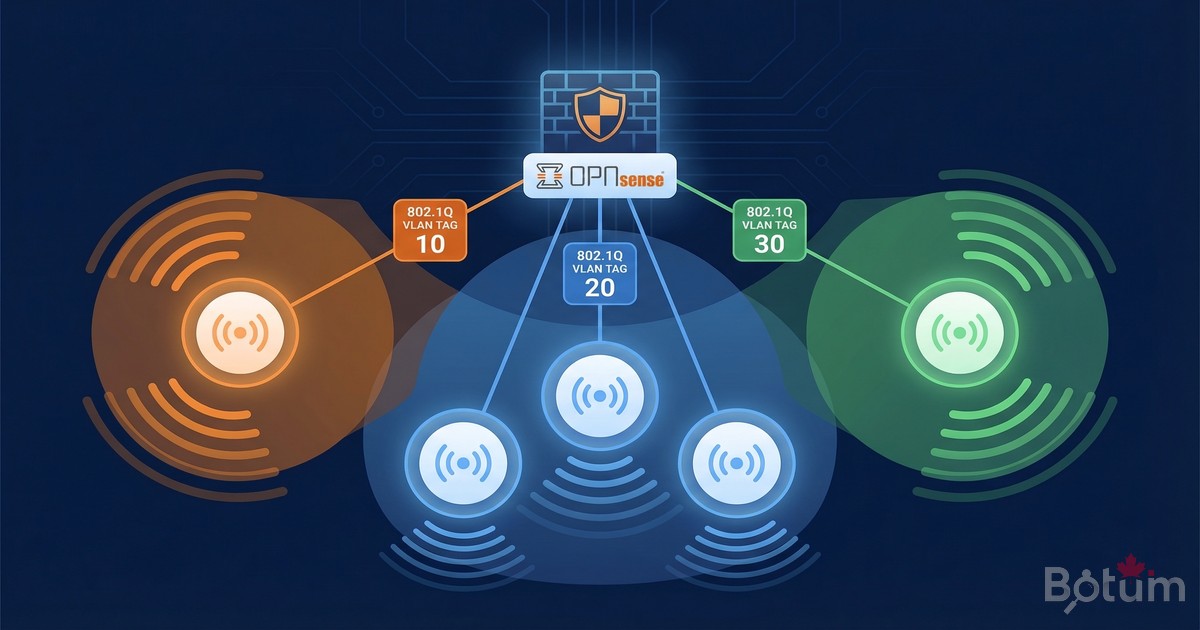
On my BOTUM infrastructure, each WiFi SSID has been isolated in its own VLAN from day one. A compromised IoT thermostat cannot reach my workstation. A guest scanning your network only sees their own subnet. WiFi VLAN segmentation is the logical extension of the Zero Trust strategy to wireless.
This post is part of the OPNsense Enterprise Stack series. See Post 1: Install OPNsense in Proxmox and Post 2: VLANs & Zero Trust before starting. For VPN and LTE failover, see Post 3: WireGuard VPN.
Why Segment WiFi by VLAN?
The short answer: because your smart TV doesn't need access to your NAS. Your security camera doesn't need to see your laptop. And your Friday night guest certainly doesn't need access to your internal network.
WiFi VLAN segmentation brings several concrete benefits on my BOTUM infrastructure:
- Security: a compromised IoT device stays confined to its VLAN. Breach containment.
- Performance: IoT traffic (cameras, thermostats) doesn't impact Work WiFi.
- Compliance: Guest and IoT without access to internal resources — separate logs.
- Visibility: separate OPNsense logs per SSID/VLAN — easier debug and audit.
- Flexibility: different QoS policies per traffic type.
Prerequisites
- OPNsense operational — see Post 1
- VLANs configured in OPNsense — see Post 2
- Managed switch supporting 802.1Q (Cisco, Netgear, TP-Link, Ubiquiti)
- WiFi AP supporting multi-SSID and VLAN tagging (UniFi, TP-Link Omada)
- Admin access to switch and AP
OPNsense (router/firewall)
    |
    | Trunk (VLANs 10,20,30,99)
    |
Managed Switch
    |
    | Trunk (VLANs 10,30,99)
    |
Access Point (UniFi/Omada)
    +-- SSID "BOTUM-Work"   -> VLAN 10
    +-- SSID "BOTUM-IoT"    -> VLAN 30
    +-- SSID "BOTUM-Guest"  -> VLAN 99
Concepts: SSID per VLAN
The principle is simple: each WiFi SSID is "tagged" with a VLAN ID. Traffic from each SSID arrives at OPNsense in its own VLAN, with its own firewall rules. No magic — just 802.1Q trunking between the switch and the AP.
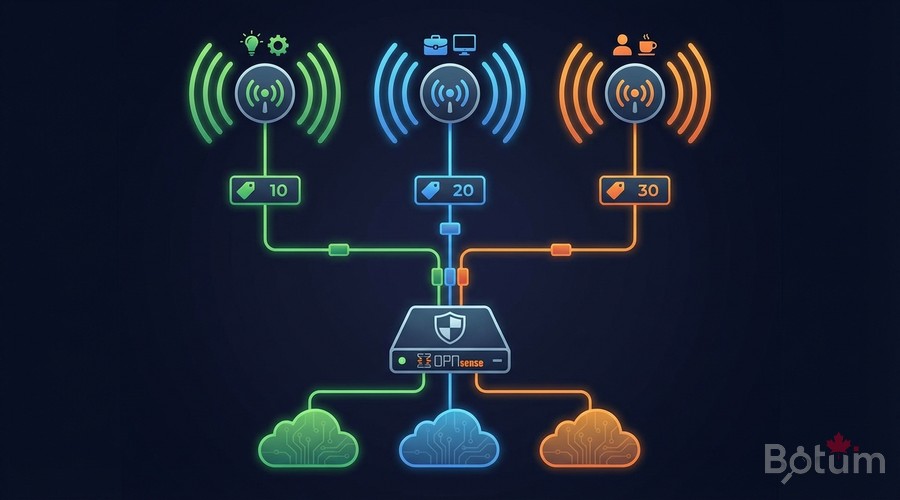
Switch Configuration (Trunk Port to AP)
The switch port connected to the AP must be configured in trunk mode to carry all WiFi VLANs.
# Cisco IOS:
interface GigabitEthernet0/8  ! Port to AP
  switchport mode trunk
  switchport trunk allowed vlan 10,30,99
  no shutdown

# TP-Link TL-SG108E (GUI):
# VLAN -> 802.1Q -> Add VLAN
# VLAN 10: AP port = Tagged | VLAN 30: AP port = Tagged
# VLAN 99: AP port = Tagged
AP Configuration
UniFi Controller
# Settings -> WiFi -> Create New WiFi

# SSID BOTUM-Work:
# Name: BOTUM-Work | Network: VLAN 10 | Security: WPA3

# SSID BOTUM-IoT:
# Name: BOTUM-IoT | Network: VLAN 30
# Client Device Isolation: ON

# SSID BOTUM-Guest:
# Name: BOTUM-Guest | Network: VLAN 99
# Guest Policy: ON | Client Isolation: ON
TP-Link Omada Controller
# Settings -> Wireless Networks -> Add

# SSID IoT-WiFi: SSID=BOTUM-IoT | VLAN=30 | WPA2-PSK
# SSID Work-WiFi: SSID=BOTUM-Work | VLAN=10 | WPA3
# SSID Guest-WiFi: SSID=BOTUM-Guest | VLAN=99 | Guest Network ON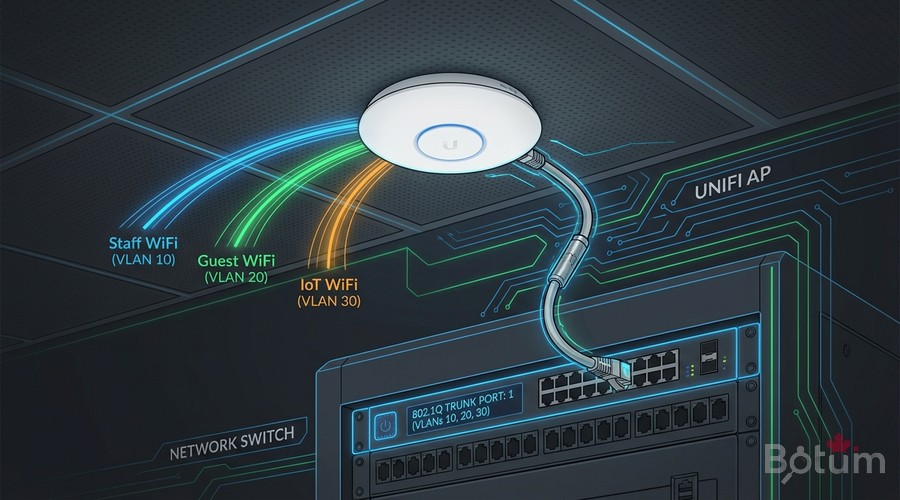
OPNsense Configuration: Bridge WiFi to VLANs
OPNsense receives tagged frames on the trunk port. VLAN sub-interfaces must already exist (Post 2). Just verify that DHCP is active on each VLAN and that interfaces are properly assigned.
# Verify VLAN interfaces in OPNsense:
# Interfaces -> Assignments
# vlan10 -> WORK (192.168.10.1/24)
# vlan30 -> IOT  (192.168.30.1/24)
# vlan99 -> GUEST (192.168.99.1/24)

# Services -> DHCP Server
# WORK : 192.168.10.100-200
# IOT  : 192.168.30.100-200
# GUEST: 192.168.99.100-200
Firewall Rules: SSID Isolation
OPNsense firewall rules control what each WiFi VLAN can reach. Principle: inter-VLAN blocked by default, internet allowed for all. Rule order is critical.
# Firewall -> Rules -> IOT (VLAN 30)

# Rule 1: BLOCK access to Work LAN
# Action: Block | Source: IOT net | Dest: 192.168.10.0/24

# Rule 2: BLOCK access to Management
# Action: Block | Source: IOT net | Dest: 192.168.1.0/24

# Rule 3: ALLOW Internet
# Action: Pass | Source: IOT net | Dest: !RFC1918

# Same pattern for GUEST (VLAN 99)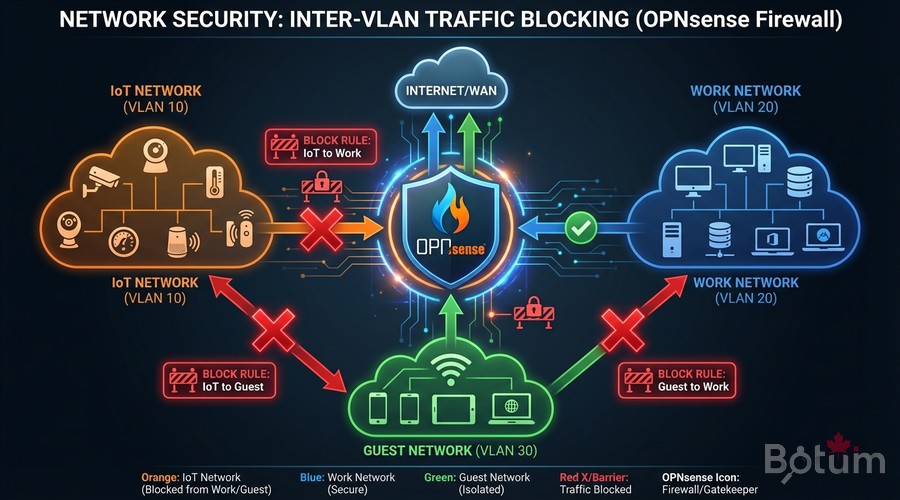
Test: IoT Cannot Access Work Network
Connect a device to SSID BOTUM-IoT and validate complete isolation:
# From a device on BOTUM-IoT (VLAN 30):

# 1. Verify received IP (must be 192.168.30.x)
ip addr show

# 2. Ping to IoT gateway (should respond)
ping 192.168.30.1  # -> OK

# 3. Ping to Work host (must be BLOCKED)
ping 192.168.10.100
# Expected: 100% packet loss

# 4. Internet (should work)
curl -s ifconfig.me

# 5. OPNsense firewall logs:
# Firewall -> Log Files -> Live View
# Filter: interface=IOT, dest=192.168.10.0/24
# Attempts appear as BLOCKED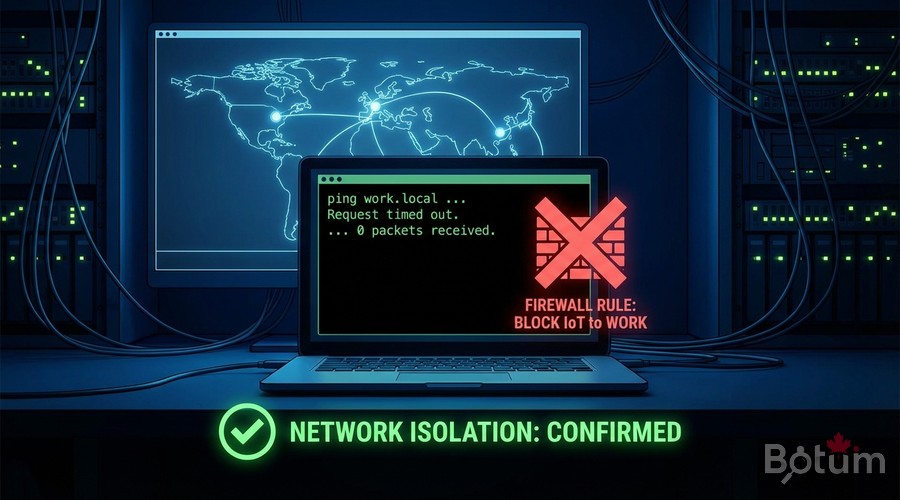
Next Steps
Your WiFi infrastructure is now segmented and secured by VLAN. The rest of the OPNsense Enterprise Stack series:
- Post 5: CrowdSec + fail2ban — collaborative IDS/IPS on OPNsense
- Post 6: Monitoring & alerts — Uptime Kuma, Grafana, Prometheus
Téléchargez ce guide en PDF pour le consulter hors ligne.
⬇ Télécharger le guide (PDF)🚀 Aller plus loin avec BOTUM
Ce guide couvre les bases. En production, chaque environnement a ses spécificités. Les équipes BOTUM accompagnent les organisations dans le déploiement, la configuration avancée et la sécurisation de leur infrastructure. Si vous avez un projet, parlons-en.
Discuter de votre projet →